Using the App — Student
Students practise, warm up, and answer diagnostics. The student experience is its own world: phone-first, audio-first, one big action at a time. Children never see scores, percentages, rankings, or any clinical label — only encouragement, stars, and the next thing to do.
The Student World
Everything a child does lives in Student World, a calm full-screen experience with large buttons and audio for instructions. For Grade 1 especially, the child can listen to the question instead of reading it. There is no sidebar and no menu to get lost in — the screen shows the one thing to do right now and a big button to do it.
The home screen is a gentle launcher with a single audio prompt. From the flows below the child moves through a warm-up, a diagnostic, or practice.
The warm-up, diagnostic, and practice flows are part of the immersive Student World and are still being wired to live sign-in in this build. The screens below show the parts that are fully working today — joining a live class, the achievements wall, and the offline screen.
Warm-up
Before measurement, a short cognitive warm-up (3–5 minutes) gets the child ready. It is rule-based and playful, non-linguistic, and never affects a child’s measured results. The child taps a big start the warm-up button and works through a few quick exercises.
Diagnostic and practice
In the diagnostic, the child answers items one at a time; the app reads each question aloud when needed and remembers exactly where the child is, so a refresh, an app switch, or a locked screen restores the session at the right step. Practice offers targeted activities; when a child has nothing to practise, the app shows a friendly “all caught up” state rather than an error.
Join a live class
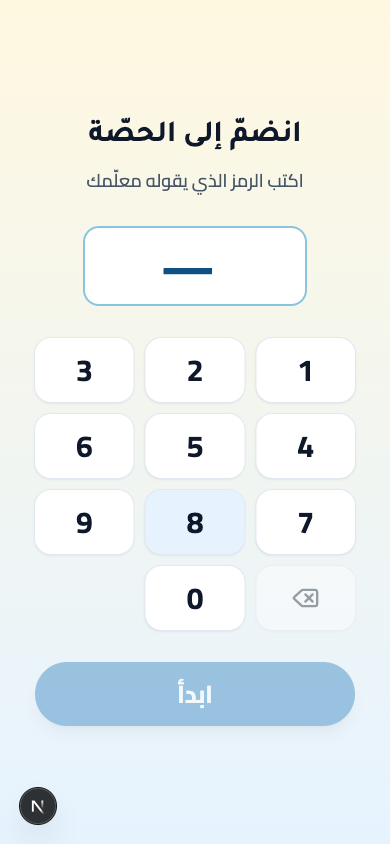
When the teacher starts a synchronous lesson, the child joins from the sync screen using the numeric code on the projector. A large keypad makes the code easy to enter on a phone.
How to:
- Read (or hear) the join code on the shared projector screen.
- Tap the digits on the keypad to enter the code.
- Tap start once the full code is entered (it stays disabled until then).
My achievements
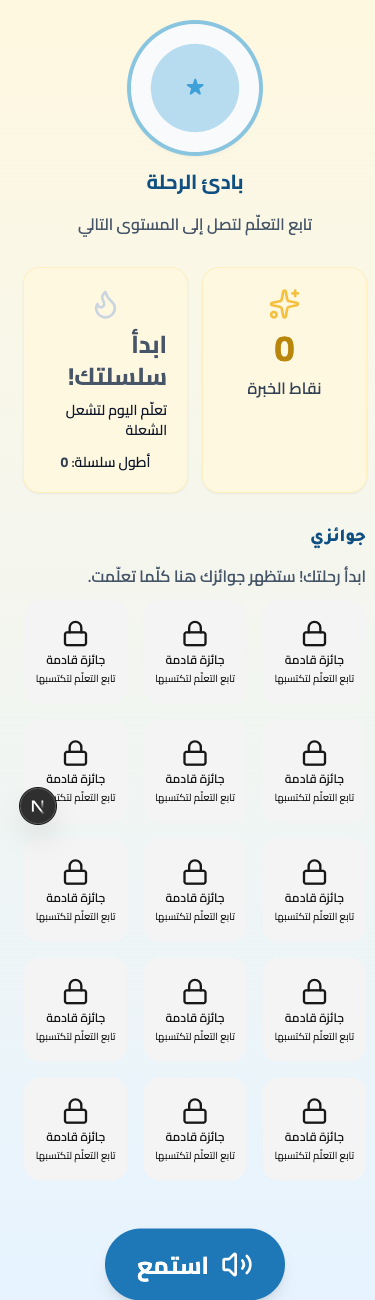
The achievements screen celebrates the child’s own journey — experience points, avatar tier, streak, and a wall of badges. Crucially, it shows only the child’s own progress: there is no rank, no peer comparison, and no score.
How to:
- See your experience points, your avatar tier, and your current streak.
- Browse the badge wall to see what you have earned.
When the connection drops
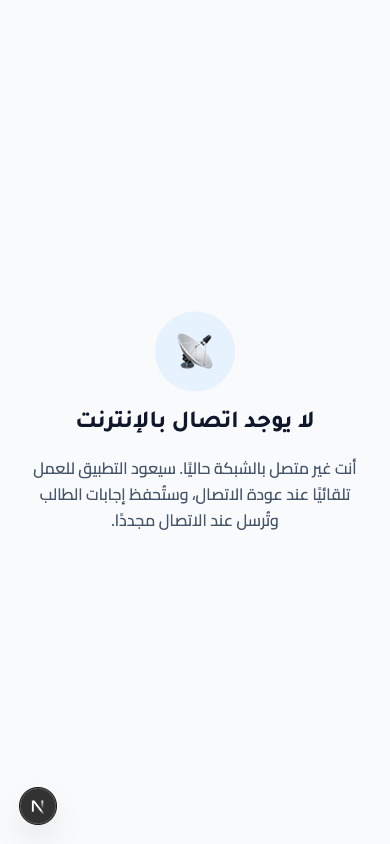
If the internet drops mid-session, the child sees a reassuring offline screen. Answers are saved on the device and sent automatically when the connection returns, so no work is lost.
On phone and tablet
Student World is phone-first: large pill buttons (72px tall), a full-cell join keypad, big avatars and badge tiles, and audio-first prompts so the youngest learners are never blocked by reading. Touch targets are comfortably large for small hands, and the layout is right-to-left at every size.
On larger tablets the student screens stay centred at a comfortable phone width rather than stretching edge-to-edge — a deliberate, calm, focused layout for young learners.